
To use Transport Fever 3 mods in a new Free Game, open the third setup tab, Add Mods, and press Activate beside each mod or eligible content pack you want. For the scripts distributed through GameWatcher, unzip the downloaded mod into the game’s staging_area folder and then activate it through Mod Hub. An existing save may expose its active-mod list through the settings control on its save card. If the Load Game button is disabled, a required mod is likely missing.
The important limitation is that these instructions do not establish one universal installation path for every storefront, operating system, or console. The manual script workflow below names staging_area without a storefront-specific absolute path. Do not assume every mod works on every platform, an older Transport Fever 2 mod works unchanged, or all mods have the same effect on achievements.
How to activate mods in a new Free Game
Free Game setup provides an Add Mods tab for optional built-in mods and available external content.
- Start configuring a new Free Game.
- Continue through the setup until you reach the third tab, Add Mods.
- Review the available mods and any content from the Deluxe Edition or Pre-Order Pack.
- Press Activate for each entry you want in this particular game.
- Recheck the active selection before continuing. Gameplay-changing mods should be chosen deliberately because the selected list becomes part of the game you are about to create.
- Press Start Game in the bottom-right corner when the setup is complete.
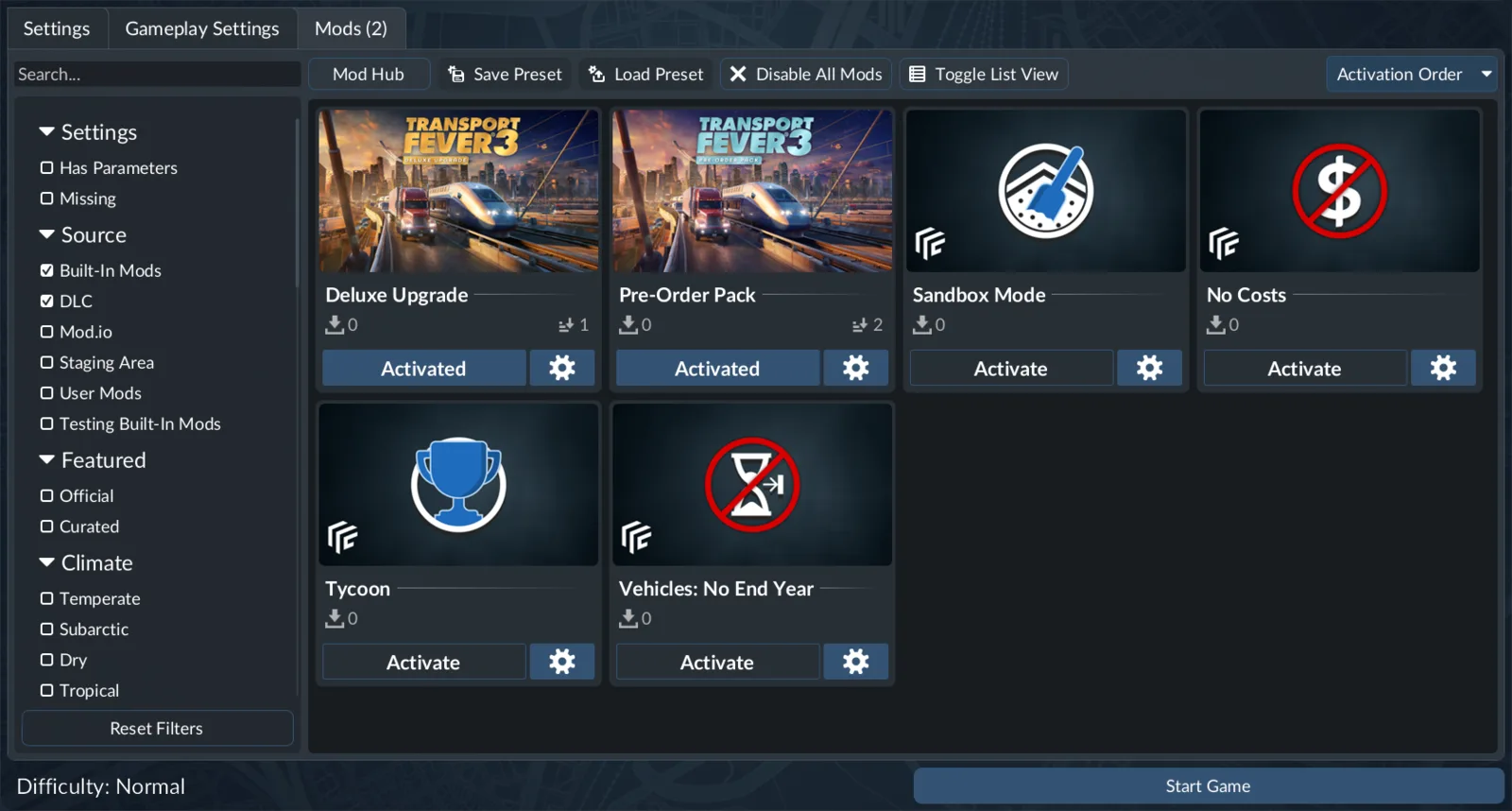
The mod list shows activation controls for the selected game setup.
Map creation can take longer when a larger map, more towns, or more industries have been selected during the preceding setup steps. A longer creation step therefore does not, by itself, prove that an activated mod has failed.
Treat the active list as a loadout for that save rather than as a general recommendation to activate everything. A utility mod, a money-changing script, and a wider-station-range script solve different problems and can alter different parts of the experience. Start with the smallest set that produces the result you actually want. That makes the save easier to understand and gives you fewer entries to inspect if loading later fails.
Built-in mods and what each one changes
Transport Fever 3 ships with four optional mods. These are activated from the same Add Mods tab, but their purposes are distinct.
| Built-in mod | Exact effect | Choose it when |
|---|---|---|
| Sandbox Mode | Lets you modify the bank balance, set the in-game calendar to a specific date, construct new towns or industries, adjust cargo demands and generated-town sizes, and demolish towns. | You want direct control over the world and economy while building or testing a scenario. |
| No Costs | Disables money completely. Everything becomes free, and the bank balance is displayed as infinite. | You want unrestricted construction without managing expenses. |
| Tycoon | Sets the company rank to the highest level and unlocks every perk while leaving other aspects unchanged. This permits all landmarks, resource prospecting, marketing campaigns, and the greenify industry tool. | You want access to rank- and perk-gated company tools without replacing the entire economy with No Costs. |
| Vehicles: No End Year | Removes the end year from vehicles available to the player. Once a vehicle becomes available, it remains available indefinitely. | You want to retain older vehicles after their normal purchasing period. |
Choose mods by the problem you want to solve
The available third-party examples fall into three useful groups: interface and network management, setup or economy changes, and simulation convenience. The listed effects below belong to the named scripts only. They should not be treated as hidden vanilla features or as promises about similarly named mods from other creators.
Network-management mods
Line Groups organizes the Manage Lines window into named, collapsible groups. Its value is organizational: it gives a large line list a user-defined structure without claiming to change vehicle behavior or network capacity.
Auto Signal Paths begins with one path signal and signals the remaining stretch of track at spacing selected by the player. It is aimed at repeated signal placement. Its role is to extend signaling along the track from the placed path signal. Do not assume it designs the entire junction, resolves every deadlock or chooses an ideal spacing automatically.
Quality of Life adds a Manage Lines button, shows vehicle loadouts on the map, and provides one-click replacement for every vehicle of a type. Choose it when those three interface and fleet-management shortcuts address recurring work in your save. Do not infer additional features from the broad mod name.
Economy and setup-changing scripts
Several scripts change starting conditions or give the player direct economic controls:
| Script | Behavior | Decision point |
|---|---|---|
| Transport Fever 3 Cheats | Adds money buttons to the bottom bar plus controls for town size and industry production. | Use it when you want those specific direct controls during play. |
| Startup Fortune | Starts the company with $100 million in the bank. | Use it when the desired change is a large starting balance rather than free construction. |
| Buy Industries | Allows industries to be built anywhere on the map for $50 million each. | Use it when purchasing and placing industries is central to the intended save. |
| Extra Large City on Start | Adds one extra large city to a new map and offers two sizes. | Use it when the map should begin with a major city ready for initial lines. |
The monetary values in this table apply to these scripts. They are not statements about the unmodified game. Startup Fortune is also different from No Costs: one supplies a stated starting bank balance, while the other disables money and displays an infinite balance. Buy Industries is different again because it introduces industry construction at a specified per-industry price.
Extra Large City on Start is intended for a new map. Its description does not say that it enlarges an existing city in an established save, so choose it while planning the new-game loadout rather than assuming it can retrofit the same starting condition later.
Simulation speed and station coverage
Faster Game Speed adds 8x and 20x buttons to the game-speed control. Select it when additional speed choices are the required outcome. Those values belong to this script; they should not be described as standard speed buttons in an unmodified game.
Bigger Station Range widens the area from which every station and stop collects passengers and cargo. Its practical purpose is to let one stop cover a larger portion of a town. No exact radius or multiplier is given for this script, so avoid planning around an assumed numeric increase.
Because Bigger Station Range changes collection coverage, use it as a deliberate rule change rather than as an invisible interface convenience. Faster Game Speed changes available simulation-speed controls instead. These changes do not establish a performance fix, route redesign or profit guarantee.
Install downloaded scripts
For the scripts distributed through the GameWatcher collection, the installation sequence is short:
- Obtain the selected mod archive.
- Unzip the mod into the game’s
staging_areafolder. - Open Transport Fever 3 and enter Mod Hub.
- Activate the installed mod.
- Confirm that it is part of the loadout for the game you intend to start or load.
Do not replace staging_area with a guessed absolute path. These steps do not identify an absolute path for Steam, Epic, GOG, Windows, macOS or Linux, or a console manual-installation procedure. If you cannot locate that folder, preserve the folder name from the instructions and determine the correct installation location for your own game installation before extracting files.
Complete both extraction into staging_area and activation in Mod Hub. If the downloaded script is not active, check those two stages before changing the save or adding more mods.
Curated mods, Mod Hub, and browser discovery
Transport Fever 3 launched with a Curated Mods Program intended to provide a selection of high-quality mods with a smooth and reliable day-one experience. Participation is limited to approved modders with a proven track record, and submitted mods must meet stated quality and eligibility criteria. Participating creators received early access, dedicated developer support, and a financial grant.
The game was also developed with moddability and cross-platform support in mind across more than vehicle additions. That design goal should not be stretched into a guarantee that every third-party file is available or compatible on every platform. A mod being visible somewhere on the web does not prove that it is part of the curated program, eligible for a particular console, or compatible with a future game update.
You can browse Transport Fever 3 entries through its mod.io game page without first loading the game. Mod Hub also supports collections, but reported limitations matter when planning several regional or thematic loadouts. One player reported that a preset created while starting a map could be loaded but not appended to another preset. Another reported that mods with dependencies could not be added to a collection and that creators could prevent their mods from being added, including to private collections.
Check those reported collection limitations in your current setup instead of assuming they apply permanently to every account or revision. The practical consequence is simple: before relying on several mix-and-match collections, check whether all required entries can actually be included together. If not, maintain a deliberate per-save active list instead of assuming one preset can always be appended to another.
Change the mod list for an existing save
Existing games are selected through Load Game from the main menu or from the pause menu while in a game. A save card can be started directly, but its settings control provides the path for inspecting more than the latest save state.
- Open the Load Game view.
- Locate the relevant save card.
- Use the settings control on that card. With a controller, pressing the left stick is the corresponding action.
- Use the available tabs to inspect autosaves, gameplay settings, or the list of active mods.
- Edit the mod list only if that save permits its settings or mod list to be changed.
- Press Load Game in the bottom-right corner when the required setup is available.
The phrase “if the save allows editing” is important. Not every save is established to expose editable settings and mods. Do not assume that the absence of an editable tab is proof of a broken installation.
If the Load Game button is disabled, a missing mod is a likely cause. Return to the save’s mod list and check the required entries before treating the save itself as lost. Avoid removing or substituting more mods at random, because that makes it harder to identify which required entry is absent.
Using older Transport Fever mods
Some mods have already been ported, but that does not establish unchanged compatibility for old Transport Fever 2 mods. Look for a Transport Fever 3 version in Mod Hub or the TF3 mod.io catalog. The existence of a previous-series version is not enough to claim that its old files will work directly.